You can redirect your add-on domain to another domain
- Log in to your cPanel account.
- Click on Redirects under the Domains section.

- Select a redirect type from the Type menu.
- Permanent (301) — This setting notifies the visitor’s browser to update its records.
- Temporary (302) — This setting does not update the visitor’s bookmarks.
- Select a domain name from the menu, or select **All Public Domains** to redirect all of the domains that your cPanel account controls.
- In the next text box, enter the rest of the URL from which you wish for the server to redirect visitors. For example, if you wish to redirect
http://example.com/directory/file.htmlto another URL, enterdirectory/file.htmlin this text box. - In the Redirects to text box, enter the URL to which you wish to redirect users.
Important:
You must specify a protocol in this text box. For example,
http://,https://, orftp://. - Select one of the following settings:
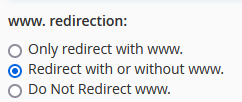
- Only redirect with www. — This setting only redirects visitors who enter the www. prefix before the domain name part of the URL.
- Redirect with or without www. — This setting redirects all users, regardless of whether the visitor enters the www. prefix before the domain name part of the URL.
- Do Not Redirect www. — This setting does not redirect users who enter the www. prefix before the the domain name part of the URL.
Note:
The interface disables the www. redirection setting if you select **All Public Domains**.
- Select the Wild Card Redirect setting if you wish to redirect all files within a directory to the same filename in the new directory. For example, if you enable the Wild Card Redirect setting and
example1.comredirects toexample.com, then a visitor who tries to access thehttp://example1.com/pic.jpgURL redirects to thehttp://example.com/pic.jpgURL.
- Click Add.

To test the redirect, click the link under Directory in the Current Redirects table. If you properly configured the redirect, the system directs you to the original domain.